
Custom charts
Create your own reference charts in the Library, and find them everywhere in Poker Spin Tracker.

Gandalf
Co-founder of Poker Spin Tracker
By default, the reference charts used in Poker Spin Tracker are the charts from the Study Pack: an Exploit strategy vs Fish and a GTO strategy vs Reg , built to match the real Spin pool.
If you want to create your own custom charts, that's possible too, and we'll see here how to do it.
Note: all charts, whether they come from Poker Spin Tracker or from you, are set up directly in the Chart Library. As soon as you create, edit or enable a chart, it is used immediately by the Range search (the Charts row and the Mistakes tab), by the Leak Finder and by the Trainer.
The Library is reserved for the Study Pack: it directly uses its charts.
And good news: these charts are used as the reference to calculate your preflop accuracy, even if you haven't bought the Pack.
1. When to customize, when to keep the default
For the vast majority of players, the Poker Spin Tracker charts are an excellent reference.
You can build your whole strategy around them, all the way to the highest stakes.
As you progress, several reasons may still push you to create your own custom charts:
- You already follow charts that come from coaching, masterclasses or chart packs, and you want them inside Poker Spin Tracker.
- You exploit the opponent data measured by Poker Spin Tracker and run a solver to build exploitative charts tailored to your pool.
- You want to simplify a few combos for more clarity at the table, which is perfectly fine.
That's the moment you'll want to bring in your own changes, and when custom charts truly make sense.
Keep in mind that the Poker Spin Tracker charts were designed as references: an excellent base, combining performance and simplicity.
But they aren't an ultra‑strict guideline that you absolutely have to follow in every situation. In poker, there are bad decisions, but sometimes there are also several good decisions that are worth just as much.
2. The Chart Library at a glance
The Chart Library lives in the Library tab of the Study area. It shows one chart per spot: the reference chart of the displayed node, for the depth and opponent profile you chose.
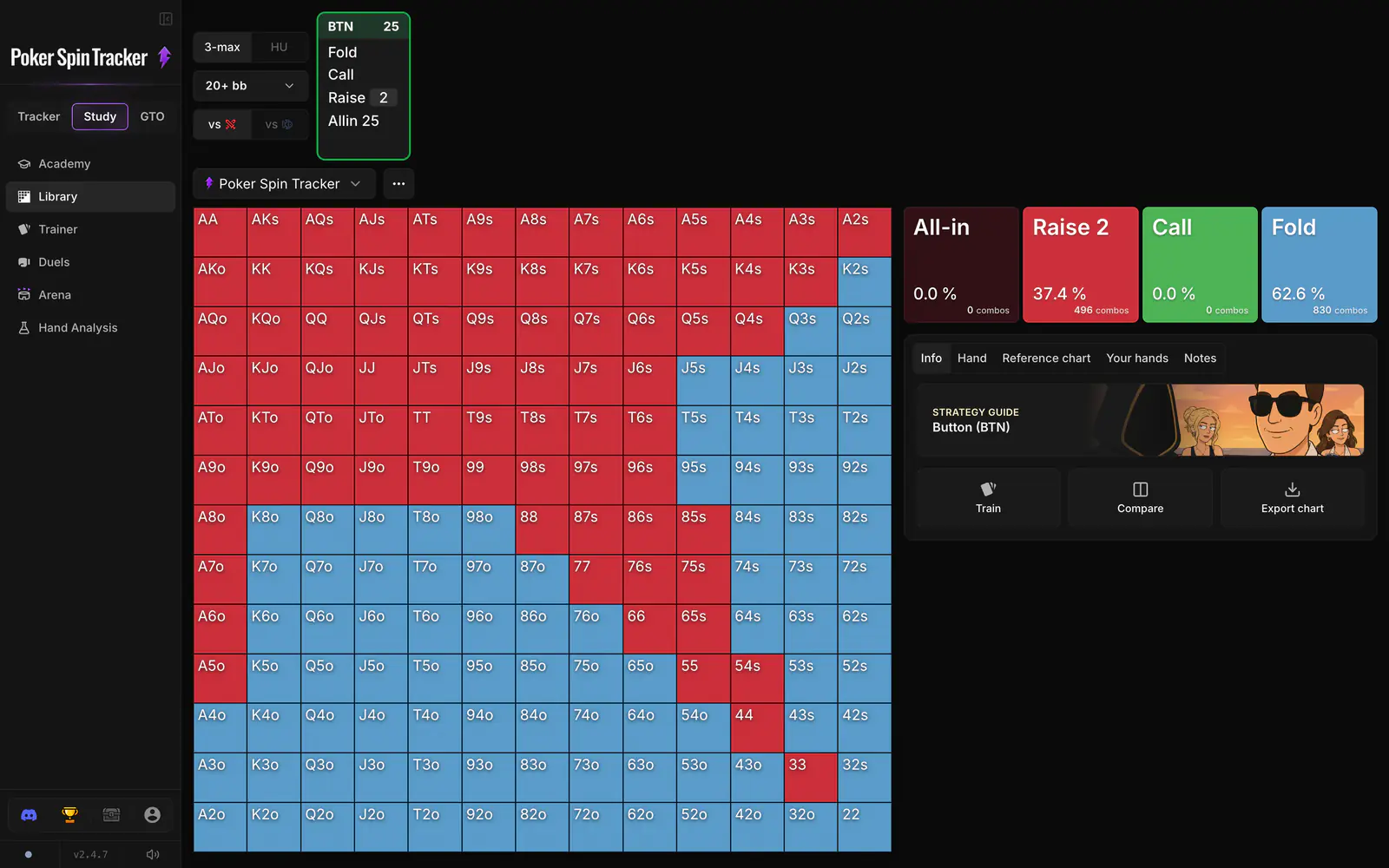
At the top left, three settings define the spot:
- The format: 3‑max or HU.
- The depth: a stack range (20+ bb, 18‑20 bb... down to 0‑4 bb). The ranges are changed with Edit stack ranges.
- The opponent profile: vs Reg or vs Fish . Each spot therefore has two charts, one against each profile.
To their right, the action line works like the one in the Range search: click an action, the next node appears, and the grid shows the reference chart of the outlined node.
To the right of the grid, the action tiles give the share of the chart for each action (Raise 2, Call, Fold, All‑in). Then a panel with five tabs:
- Info: the spot's Strategy Guide, and three tiles: Train (play this spot in the Trainer's Free Play, against the same opponent), Compare (two charts side by side) and Export chart.
- Hand: the combos of the hovered hand, with the share of each action.
- Reference chart: the chart used as the reference for this spot. That's the tab we care about here.
- Your hands: how many times you've played this situation, by stack range.
- Notes: your note on this spot, for this profile and this stack range. It saves as you type. A small yellow parchment flags it on the tab, and after the node's position on the action line: hover the latter to read the note again.
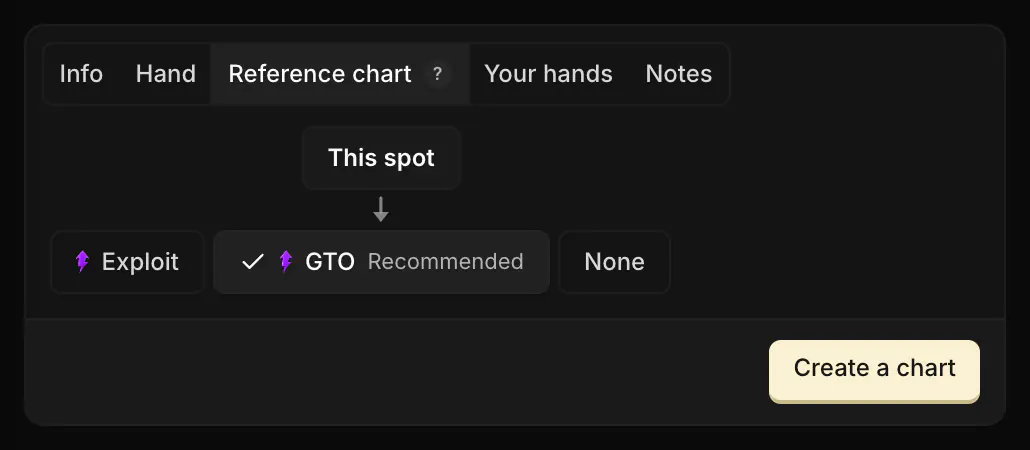
By default, the Recommended chart is ticked, and those are the Poker Spin Tracker charts:
- GTO vs Reg
- Exploit vs Fish
They are only replaced by your custom charts if you explicitly decide so. None removes any reference on this spot: your hands are then no longer compared to any chart there.
3. Creating a chart and making it the reference
On the spot, depth and profile you want to customize:
1. In the Reference chart tab, click Create a chart.
2. The editor takes the place of the panel, to the right of the grid. You start from a copy of the current reference chart.
In the Brush panel, each action has its own bar: Fold, Call, Raise and its size, All‑in. Set the share of each one (one click per quarter, a drag, or the % field), up to 100 % for all of them together, then paint the cells of the grid. An empty brush works as an eraser. Add raise adds another raise size.
Fill paints the empty space in one go (whatever isn't painted yet, even within a partly painted cell) or a group of hands: Pairs, Ax suited, Broadways offsuit... Hover a row of the list, the grid shows the result, and only the click applies it. Clear all empties the grid.
You'll see, we tried to build the most intuitive system possible.
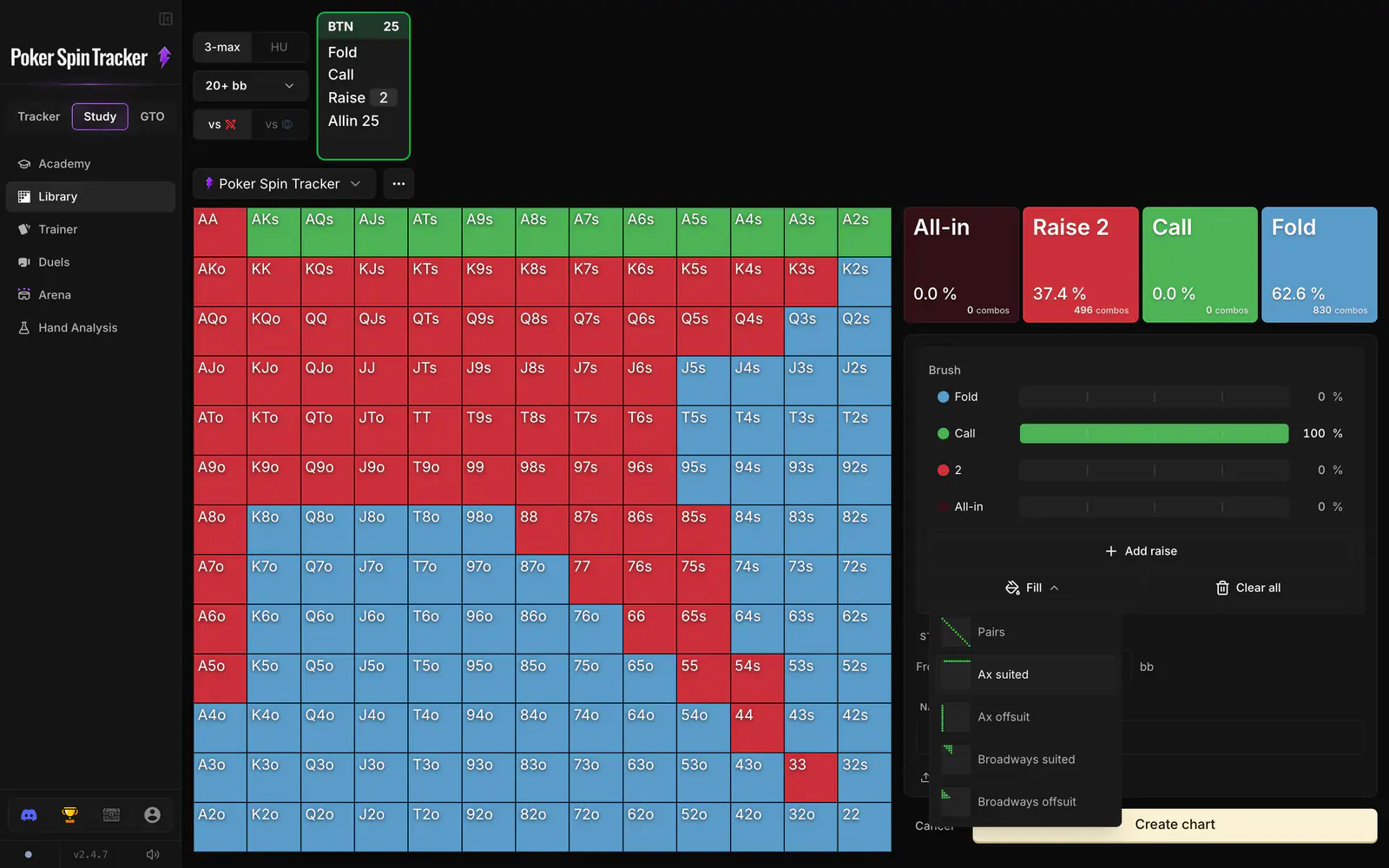
Already have the chart somewhere else? Import a chart accepts a pasted export, and From my library reuses a chart from another spot.
You switch profile, stack range, node or page along the way? The chart you started or edited is waiting for you when you come back, as long as Poker Spin Tracker stays open. Only Cancel and saving clear it.
3. Check the stack bounds (From... to...), give it a name in the field provided, then click Create chart.
4. This chart automatically becomes the reference chart for this spot and this stack range (and only for vs Fish or vs Reg , depending on what you selected).
It joins the buttons of the tab, without replacing what's there: a click on GTO or Exploit goes back to them, a click on yours makes it the reference again.
Next to the ticked chart, the pencil opens it in the editor and the bin deletes it.
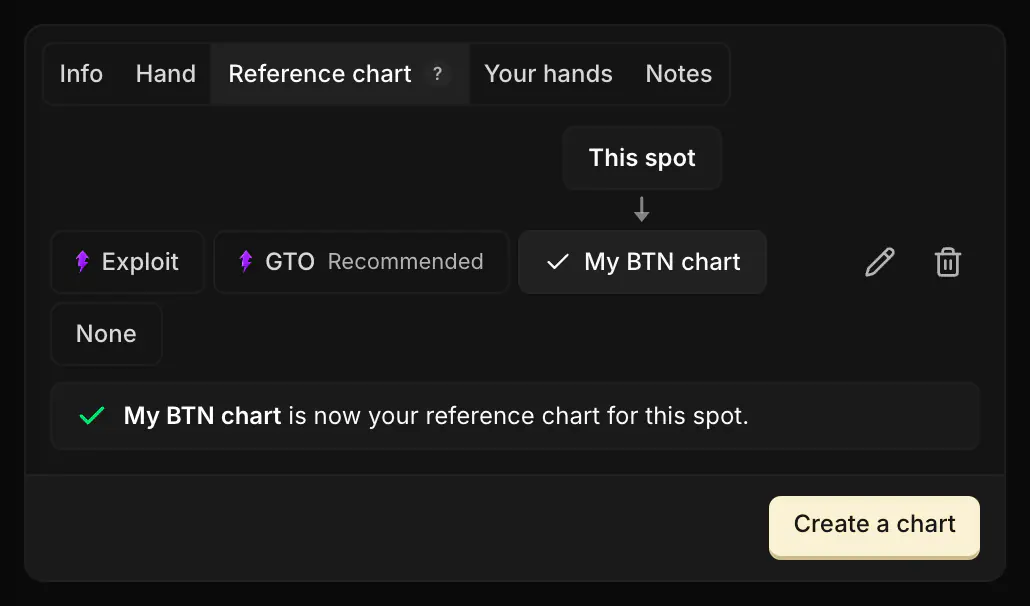
You can save as many versions as you want for this spot and this stack range, and switch between them whenever you like. As long as a chart isn't ticked as the reference chart, it stays in stock.
4. Several libraries, and sharing them
Your charts live in a library. At first there's only one, Poker Spin Tracker, the one the menu above the grid shows. You can create others (New library): one per playing style, one per stake, one received from a coach. Only one is active at a time, and it's the one the Range search, the Leak Finder and the Trainer read.
New library asks for a starting point:
- Copy of Poker Spin Tracker: the original Poker Spin Tracker charts, with their stack ranges and no notes, which you then edit. To start from your library as it stands (your charts, your reference choices and your notes), use Duplicate instead. It's a copy: it no longer follows the updates of the Poker Spin Tracker charts.
- Empty: you build everything. As long as a spot has no chart, your hands there are compared to no reference chart.
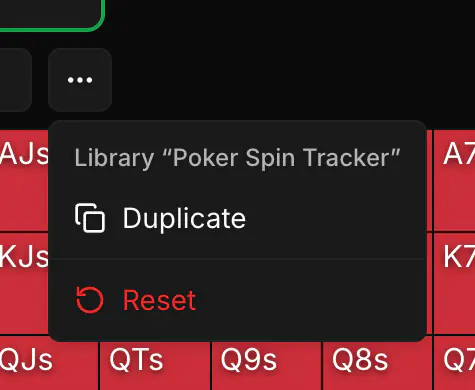
The Library actions button (the three dots next to the menu) gathers the actions on the active library. On the Poker Spin Tracker library: Duplicate and Reset (start again from the original charts). On a library of your own: Duplicate, Share, Rename and Delete.
Share sends a copy of your library to other players, searched by their public nickname. You need one too: choose it in My account → Profile.
Each of them accepts or declines it, then edits it on their side. For them, a share icon sets it apart, and hovering its row in the menu shows Received from your nickname. To pass on your updates, send it again later.
5. Backup
To find your custom charts and situations again on another computer, enable the optional cloud backup from My account → Security → Chart Library. It covers all your libraries: custom charts, situations, stack ranges, the reference chart of each spot and your notes. Never your hands or your statistics.
This chapter wraps up our detour into custom preflop charts. In the next chapter, we leave the 13×13 grid behind: the Range search carries on at the flop...

See all of this on your own hands
Free trial up to 2 000 Spins.
Also available for and